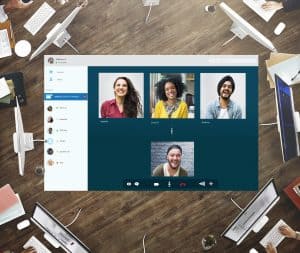
The growing remote work trend has increased the need for effective desktop-sharing apps for Windows 10. As businesses embrace remote collaboration, seamlessly sharing screens and collaborating in real time has become essential. A reliable Windows 10 desktop-sharing app can facilitate efficient communication and enhance productivity.
Desktop sharing software allows users to remotely share their screens with colleagues, clients, or team members. This remote desktop sharing capability enables seamless collaboration, as participants can view, access, and control shared screens from their own devices. It eliminates the need for physical presence, making it easier to work together regardless of geographical constraints.
Windows 10 remote desktop software offers remote access to files and applications, improved troubleshooting capabilities, and efficient remote support. With a reliable desktop sharing tool, users can effortlessly connect to their Windows 10 desktop from any location, enhancing flexibility and convenience.
When choosing the best desktop-sharing app for Windows 10, it’s important to consider factors such as ease of use, security, and features. Look for a screen-sharing app designed for Windows 10, ensuring compatibility and optimal performance. Invest in a reliable Windows 10 desktop-sharing app that meets your needs, and experience the advantages of remote desktop sharing firsthand.
5 Best Free Remote Desktop Software
Understanding the need for a Windows 10 desktop-sharing app
A reliable and user-friendly desktop-sharing app for Windows 10 is essential for remote workers to overcome the challenges mentioned below and improve their productivity and collaboration. Let’s explore the key reasons why such an app is crucial:
Enhanced Remote Collaboration:A Windows 10 desktop sharing app facilitates seamless collaboration among remote team members. It allows real-time access to shared files and applications, enabling simultaneous work on projects, fostering teamwork, and improving overall productivity.
Efficient Problem Solving: Remote workers often face technical issues requiring colleagues, or IT support assistance. With a reliable desktop sharing app, they can quickly share their screens, enabling others to diagnose and resolve problems remotely, saving time and minimising disruptions.
Secure Data Sharing:Data security is a top concern for remote workers. A trusted desktop-sharing app ensures secure remote access to desktops and files, employing encryption and authentication measures to protect sensitive information. This eliminates the need for less secure file-sharing methods or emailing files back and forth.
Increased Flexibility and Productivity: By utilising a Windows 10 desktop sharing app, remote workers can work from anywhere without compromising productivity. They can access their desktops, applications, and files as if in the office, enabling them to maintain their workflow and efficiency.
Challenges Faced by Remote Workers in Accessing and Sharing Their Desktops
In today’s remote work environment, where collaboration is crucial, accessing and sharing desktops seamlessly becomes a top priority. Remote workers often need help with remote collaboration and desktop sharing. These challenges can hinder productivity, communication, and efficient teamwork. Fortunately, these obstacles can be overcome with the right Windows 10 desktop sharing app, enabling smooth and effective remote collaboration.
Limited Remote Access: Remote workers often need help accessing their desktops and files securely from anywhere. Traditional methods like VPNs can be slow, unreliable, and complicated to set up. A reliable desktop-sharing app for Windows 10 solves this problem by providing remote access to desktops and files with just a few clicks.
Complex Setup and Configuration: Many remote workers need help with the complexity of setting up and configuring remote desktop access. They may need more technical expertise or face compatibility issues. A user-friendly desktop-sharing app designed specifically for Windows 10 simplifies the process, ensuring that even non-technical users can quickly and easily connect to their desktops remotely.
Limited Screen Sharing Options: Effective collaboration often requires sharing screens during meetings, presentations, or troubleshooting sessions. Remote workers may encounter difficulties finding a suitable screen-sharing app that seamlessly integrates with their Windows 10 system. A dedicated Windows 10 desktop sharing app offers a convenient and efficient solution, enabling smooth screen sharing for enhanced communication and collaboration.
Exploring the features of the ultimate Windows 10 desktop sharing app
In the age of remote work and collaboration, finding the perfect desktop-sharing app for Windows 10 is crucial. The right software can empower seamless screen sharing and remote access, facilitating efficient teamwork and boosting productivity.
Seamless Screen Sharing
The Windows 10 desktop sharing app offers powerful screen-sharing functionality, ensuring a smooth and hassle-free experience. Users can effortlessly share their screens with colleagues, clients, or friends with just a few clicks. This feature eliminates the need for complex setups or technical expertise, allowing users to focus on their work and collaboration.
Remote Access Made Easy
One of the standout features of this desktop-sharing app is its ability to enable remote access to your Windows 10 desktop. Whether you’re working from home, travelling, or need to access your office computer remotely, this app provides a secure and convenient solution. By logging in from any device with an internet connection, you can access your files, applications, and documents as if you were physically present on your desktop.
Collaboration and Productivity Tools
Apart from screen sharing and remote access, the Windows 10 desktop sharing app offers a range of collaboration and productivity tools. These features enhance teamwork and streamline workflows, ensuring seamless communication and efficient project management. Users can take advantage of real-time annotation tools, file-sharing capabilities, chat functionality, and more, all within the app’s user-friendly interface.
With the increasing prevalence of remote work, having a dedicated desktop-sharing app for Windows 10 has become essential. This app bridges the gap between team members in different geographical locations, fostering effective collaboration and enabling remote work to thrive. Its seamless screen sharing and remote access features facilitate virtual meetings, client presentations, and training sessions, ensuring everyone stays connected and engaged.
Benefits of using the Windows 10 desktop sharing app
In today’s remote work era, having efficient collaboration and seamless communication is essential for teams to thrive. The Windows 10 desktop sharing app is a powerful tool that enhances remote collaboration, productivity, and efficiency. Allowing users to share their desktop screens facilitates real-time communication, improves teamwork, and streamlines workflows.
Enhancing Collaboration
Real-time Collaboration: The Windows 10 desktop sharing app enables real-time collaboration by allowing team members to share their screens with colleagues. This feature fosters effective communication and teamwork, enabling instant feedback and reducing miscommunications.
Seamless Document Sharing:With the desktop sharing app, teams can easily share documents and files during virtual meetings or collaborative sessions. This functionality eliminates the need for cumbersome email attachments and enables participants to review and edit files simultaneously.
Improving Productivity
Efficient Problem-solving: The Windows 10 desktop sharing app is a valuable tool for troubleshooting technical issues remotely. IT professionals can quickly access users’ desktops, diagnose problems, and provide immediate support, reducing downtime and increasing productivity.
Remote Access to Resources: The app allows remote workers to access resources and applications on their office computers from anywhere. This remote desktop functionality empowers employees to work seamlessly with their familiar setup and software, regardless of their physical location.
Increasing Efficiency
Streamlined Meetings: Using the Windows 10 desktop sharing app during virtual meetings, participants can avoid lengthy explanations and visually demonstrate concepts or share relevant information on their screens. This streamlined approach saves time and ensures that meetings stay focused and productive.
Training and Onboarding: The desktop-sharing app simplifies the process of training and onboarding new employees. Trainers can share their screens to provide step-by-step demonstrations, allowing new hires to follow along and grasp concepts more effectively. This reduces the learning curve and accelerates the integration of new team members.
A guide to using the Windows 10 desktop sharing app
The Windows 10 operating system offers a powerful desktop-sharing app that enables remote collaboration and enhances productivity for individuals and teams.
Setting up the Windows 10 Desktop Sharing App
To get started with the Windows 10 desktop sharing app, follow these simple steps:
Ensure that your Windows 10 operating system is up to date to access the latest features and improvements.
Open the Microsoft Store, search for the “Windows 10 Desktop Sharing App,” and click the download or install button to acquire the software.
Once the installation is complete, launch the app from your desktop or the Start menu.
Using the Windows 10 Desktop Sharing App
The Windows 10 desktop sharing app provides a seamless experience for remote collaboration. Follow these steps to utilise its powerful features:
Launch the app and sign in using your Microsoft account credentials.
Upon signing in, you will be presented with a user-friendly interface that allows you to control various sharing options.
To initiate a remote desktop sharing session, click the “Share Desktop” button. This will generate a unique session code you can provide to other participants.
Share the session code with the desired participants, such as colleagues or clients, via email or other communication channels.
Participants can join the session by entering the code in their Windows 10 desktop sharing app.
Once connected, participants can view and control their shared desktops in real time, facilitating efficient collaboration and troubleshooting.
Take advantage of additional features like file transfer, chat functionality, and screen recording during the session to enhance your remote collaboration experience.
Click the “Stop Sharing” button or close the app to end the sharing session.
Tips and Tricks for Optimizing the App’s Functionality and Performance
Here are some valuable tips to enhance your experience with the Windows 10 desktop-sharing app:
Ensure a stable internet connection: To avoid interruptions and ensure smooth remote collaboration, it is crucial to have a reliable and high-speed internet connection.
Optimise your system settings: Prioritise performance by closing unnecessary applications and processes that may consume system resources, ensuring an optimal experience during remote desktop sharing sessions.
Leverage multi-monitor support: If you have multiple monitors, use the app’s multi-monitor support to share specific screens or applications, providing a focused and efficient collaboration experience.
Enable firewall exceptions: Configure your firewall to permit the necessary network connections to allow the Windows 10 desktop sharing app to function seamlessly.
Regularly update the app: Keep an eye out for updates to the Windows 10 desktop sharing app, as these often include bug fixes, security enhancements, and new features to improve your remote collaboration experience.
Enhancing remote work with Windows 10 desktop sharing app
In today’s digital era, remote work has become increasingly prevalent, necessitating efficient collaboration and seamless access to work resources. Windows 10, a widely used operating system, offers a powerful desktop-sharing app that empowers individuals and organisations to enhance their remote work experience.
Seamless Collaboration: Empowering Remote Teams
The Windows 10 desktop sharing app enables remote teams to communicate effectively through screen sharing and real-time collaboration. Team members can instantly share their desktop screens, allowing others to view and provide input, irrespective of location. This promotes better understanding, eliminates miscommunication, and ensures that everyone remains on the same page, even when working remotely.
Efficient Remote Access: Work from Anywhere
Remote Desktop Sharing Made Easy:The Windows 10 desktop sharing app simplifies remote access to workstations or servers, irrespective of the user’s physical location. Users can securely connect to their office computers or access important files and applications from anywhere with just a few clicks. This eliminates the need for physical presence in the office and empowers individuals to work efficiently without interruptions.
Enhanced Productivity and Flexibility: By leveraging the Windows 10 desktop sharing app, professionals can enjoy enhanced productivity and flexibility. They can easily access their work environment, retrieve files, and run software applications remotely. Whether working from home, in a coffee shop, or on the go, employees can stay connected and continue their tasks seamlessly. This flexibility empowers individuals to achieve a better work-life balance and maximise productivity.
Best Desktop Sharing App for Windows 10: Features and Benefits
User-friendly Interface and Features:The Windows 10 desktop sharing app is a user-friendly tool, offering an intuitive interface and robust features. With its easy-to-navigate design, even novice users can quickly adapt and leverage its functionalities. The app allows for secure remote desktop sharing, file transfer, and real-time collaboration, enhancing efficiency and productivity.
Secure Remote Access:Security is of paramount importance in remote work scenarios. The Windows 10 desktop sharing app ensures secure remote access, providing encryption protocols and authentication mechanisms to protect sensitive data and prevent unauthorised access. Organisations can confidently embrace remote work, knowing their information remains safe and secure.
Conclusion
Looking for a reliable and feature-rich desktop sharing app for Windows 10 in the context of remote work? Look no further! With the increasing demand for remote collaboration, finding a Windows 10 desktop sharing app that meets your needs is crucial. Whether you need screen sharing, remote access, or a powerful tool for seamless communication, desktop-sharing software can make all the difference. Using a top Windows 10 desktop sharing app, you’ll enjoy secure remote desktop sharing, user-friendly features, and various benefits. Explore the options available, compare their features, and find the best remote desktop sharing app for Windows 10 that suits your requirements.
A feature-packed Windows 10 desktop sharing app provides the tools to share screens, access remote desktops, and enhance productivity. Choosing a desktop-sharing solution that ensures secure connections is important, as data privacy is paramount. Consider the following factors when selecting a Windows 10 desktop sharing app: ease of use, affordability, and user-friendly features. Check out reviews, comparisons, and recommendations to make an informed decision. Download the best desktop sharing app for Windows 10 today and streamline your remote work experience.
FAQs
What is the best desktop sharing app for Windows 10?
There are several good desktop sharing apps for Windows 10, but one popular option is TeamViewer. It offers comprehensive features, including remote control, file transfer, and collaboration tools. Another reliable choice is AnyDesk, known for its fast and smooth performance. Ultimately, the best app depends on your specific needs and preferences, so it’s worth exploring different options to find the one that suits you best.
How does desktop-sharing software work?
Desktop sharing software allows users to share their computer screen with others remotely. It captures and transmits the screen display over a network connection to the viewers. The viewers can then see the shared screen in real-time on their devices. In addition to screen sharing, these software applications often provide features like remote control, file transfer, and collaboration tools. They utilise protocols and compression techniques to optimise screen data transmission, ensuring a smooth and efficient experience for both the sharer and the viewers.
Is remote desktop sharing secure?
Remote desktop sharing can be secure if certain precautions are taken. Reputable desktop sharing applications use encryption to protect the data transmitted between the sharer and viewers. They employ strong encryption algorithms to ensure that the screen-sharing session is not easily intercepted or tampered with by unauthorised individuals. However, choosing a trusted and reputable desktop-sharing app from a reliable source is essential to minimise the risk of security vulnerabilities. Additionally, users should follow best practices such as using strong passwords, keeping software updated, and being cautious about granting remote access to unknown or untrusted individuals.
Can I use a screen-sharing app on Windows 10?
Yes, you can use screen-sharing apps on Windows 10. Several screen-sharing apps are available for this operating system, both free and paid. Some popular options include TeamViewer, AnyDesk, Chrome Remote Desktop, and Microsoft Remote Desktop. These apps allow you to share your screen with others or remotely access and control another computer. Whether you need to collaborate with colleagues, provide technical support, or work on a project with someone remotely, screen-sharing apps on Windows 10 can facilitate these tasks effectively.
How to set up a remote desktop on Windows 10?
To set up a remote desktop on Windows 10, follow these steps:
Open the Start menu and go to “Settings.”
Click on “System” and select “Remote Desktop.”
Toggle the “Enable Remote Desktop” option to ON.
Note down the name of your PC under “PC name.” You’ll need it to connect remotely.
Configure your router to forward port 3389 to your computer’s IP address if you want to access your PC outside your local network.
On the remote computer, use a Remote Desktop client application (such as Microsoft Remote Desktop or another compatible app) to connect to your Windows 10 PC using its name or IP address.
Enter your username and password when prompted, and you should be able to access your Windows 10 desktop remotely.
What are the benefits of using a desktop sharing app?
Using a desktop sharing app offers several benefits. It allows for easy collaboration and communication by enabling users to share their screens with others in real time. This is particularly useful for remote teams, online meetings, and virtual presentations, as it eliminates the need for physical presence and enables participants to view and interact with shared content from anywhere. Desktop-sharing apps also facilitate remote technical support by allowing experts to troubleshoot issues on a user’s computer without being physically present. Additionally, these apps often include features like file transfer, remote control, and annotation tools, further enhancing productivity and efficiency during collaborative tasks.
Are there free desktop sharing tools for Windows 10?
Yes, there are free desktop sharing tools available for Windows 10. Some popular options include TeamViewer, AnyDesk, Chrome Remote Desktop, and Microsoft Remote Desktop. These tools offer basic screen-sharing functionalities and can be used without cost. However, it’s important to note that some free versions may have limitations on features or impose restrictions on commercial usage. Consider paid versions or alternative solutions if you require advanced capabilities or want to use the software for commercial purposes. Always review the terms and conditions of the specific tool to ensure it aligns with your requirements.
Which is the most user-friendly desktop sharing app for Windows 10?
TeamViewer is often considered one of the most user-friendly desktop sharing apps for Windows 10. It offers an intuitive and user-friendly interface, making it easy for beginners and experienced users to navigate and utilise its features effectively. TeamViewer provides clear instructions, simplifies the connection process, and offers various customisation options to suit individual preferences. Additionally, it supports cross-platform connectivity, allowing users to connect to Windows, macOS, Linux, iOS, and Android devices. Other user-friendly options include AnyDesk, which emphasises simplicity and performance, and Microsoft Remote Desktop, which integrates seamlessly with Windows 10 and provides a straightforward setup process.
Can I control a remote desktop with Windows 10?
You can control a remote desktop with Windows 10 using remote desktop software. Windows 10 includes a built-in remote desktop feature called “Remote Desktop Connection,” which allows you to access and control a remote computer running a Windows operating system. To use this feature, you must enable a remote desktop on the remote computer and have the necessary permissions. Once configured, you can connect your Windows 10 PC to the remote computer by entering its name or IP address in the Remote Desktop Connection app. This lets you view and control the remote desktop screen as if you were physically present on that computer.
What are the options for Windows 10 desktop sharing apps?
There are several options for desktop sharing apps on Windows 10. Some popular choices include:
TeamViewer: Offers a comprehensive set of features, including remote control, file transfer, and collaboration tools.
AnyDesk: Known for its fast and smooth performance, it provides remote access and collaboration capabilities.
Chrome Remote Desktop: A browser-based option that allows screen sharing between devices using the Google Chrome browser.
Microsoft Remote Desktop: Built into Windows 10, it enables remote access to other Windows computers within the same network or over the internet.
Splashtop: Provides secure remote access and support features, with options for personal and business use.
These are just a few examples, and many other desktop-sharing apps are available for Windows 10, each with its features and capabilities.
How to download a desktop sharing app for Windows 10?
To download a desktop sharing app for Windows 10, follow these general steps:
Open your preferred web browser on your Windows 10 computer.
Go to the official website of the desktop sharing app you want to download.
Look for a “Download” or “Get” button on the website.
Click on the button to initiate the download.
Depending on the app, you may be prompted to save the installer file or run it directly.
Follow the on-screen instructions to complete the installation process.
Once installed, launch the desktop sharing app and configure any necessary settings or permissions.
You should now be ready to use the app to share your desktop or access remote computers.
Remember to download desktop-sharing apps from trusted sources to ensure the safety and security of your system.
Are there any affordable desktop sharing solutions for Windows 10?
Yes, there are affordable desktop sharing solutions available for Windows 10. Many desktop-sharing apps offer different pricing tiers, including free versions or affordable subscription plans, making them accessible to users with various budgets. Some options include TeamViewer, which provides free and paid versions with different feature sets and AnyDesk, which offers a free version for personal use and affordable subscription plans for commercial purposes. Microsoft Remote Desktop is also built into Windows 10 and can be used without additional cost. When considering affordability, it’s important to assess each solution’s specific features and limitations to ensure they meet your requirements within your budget.
How to compare different desktop sharing apps for Windows 10?
When comparing different desktop sharing apps for Windows 10, consider the following factors:
Features: Assess the features provided by each app, such as screen sharing, remote control, file transfer, and collaboration tools, and determine which ones are essential for your needs.
Performance: Look for apps that offer fast and smooth performance, ensuring a seamless screen-sharing experience.
Security: Consider the security measures implemented by the app, including encryption protocols and authentication mechanisms, to protect your data and privacy.
Ease of use: Evaluate the user interface and intuitiveness of the app to ensure it is user-friendly and easy to navigate.
Compatibility: Check if the app supports Windows 10 and if it allows connectivity with different operating systems and devices.
Pricing: Compare the pricing plans, including free versions, trial periods, or subscription options, and determine if they fit your budget.
Reviews and ratings: Read user reviews and ratings to gain insights into other users’ experiences and satisfaction levels.
Considering these factors, you can make an informed decision and choose the desktop sharing app that best matches your requirements.
What features should I look for in a Windows 10 desktop sharing app?
When selecting a Windows 10 desktop sharing app, consider the following features:
Screen sharing: The app should allow you to share your screen with others and have options for controlling the level of access.
Remote control: Look for apps that offer remote control capabilities, enabling you to control a remote desktop as if you were physically present.
File transfer: Check if the app supports easily and securely between connected devices.
Collaboration tools: Some apps provide additional collaboration features, such as whiteboarding, annotation, and chat, which can enhance teamwork and productivity.
Performance: Look for apps with fast and responsive performance, ensuring a smooth screen-sharing experience even with low internet bandwidth.
Security: Ensure the app implements strong encryption protocols to protect your data during transmission and provides authentication mechanisms for secure access.
Cross-platform compatibility: If you need to connect with devices running different operating systems, choose an app that supports cross-platform connectivity.
User-friendly interface: Consider apps with an intuitive and user-friendly interface, making it easy to navigate and utilise the features effectively.
By evaluating these features, you can select a desktop sharing app that meets your requirements.
How to share my desktop on Windows 10?
To share your desktop on Windows 10, you can use the built-in feature called “Project” or “Connect to a Wireless Display.” Follow these steps:
Open the Action Center by clicking on the speech bubble icon in the bottom-right corner of the screen or pressing the Windows key + A.
Click on the “Project” button. It looks like a rectangle with a screen icon.
Select the desired sharing option, such as “PC screen only,” “Duplicate,” “Extend,” or “Second screen only.”
If you want to share your screen wirelessly, click “Connect to a Wireless Display” and follow the prompts to connect to a compatible display device.
Alternatively, you can use third-party desktop sharing apps like TeamViewer, AnyDesk, or Chrome Remote Desktop for more advanced sharing options, including remote access and control, file transfer, and collaboration tools.
Modern meetings have evolved significantly with the integration of audiovisual (AV) tools. These powerful tools play a crucial role in enhancing productivity and collaboration, making meetings more efficient and effective. By leveraging AV solutions, businesses can streamline communication, foster remote collaboration, and optimize meeting room setups to create an interactive and engaging environment. In this blog, we will explore the importance of AV tools in modern meetings and how they contribute to maximizing productivity while providing valuable tips and best practices for using them effectively.AV tools offer a myriad of benefits that significantly contribute to maximizing meeting productivity. The seamless integration of technology enhances communication and information sharing, ensuring that participants are engaged and aligned with the meeting’s objectives. Using advanced video conferencing tools, virtual meetings become more interactive, allowing real-time collaboration among remote teams.In the digital age, virtual meetings have become commonplace, with teams distributed across different locations. AV technology bridges the geographical gap, bringing teams together in a virtual environment. Interactive displays and screen sharing capabilities facilitate effective presentations, brainstorming, and idea sharing. This fosters better team collaboration, leading to more productive outcomes.Well-equipped conference rooms with AV technology enable seamless communication during meetings. High-quality audio and video systems, along with efficient collaboration software, ensure that participants can effectively express their ideas. This creates a conducive atmosphere for open discussions and problem-solving.AV tools also aid in meeting management, making it easier for organizers to set agendas, track progress, and manage time effectively. Utilizing AV hardware and meeting software, facilitators can enhance the flow of discussions and keep the meeting on track. This contributes to better time management and ensures that all essential topics are addressed.How to have more effective and productive meetings AV Tools for Conference RoomsIn today’s fast-paced business world, productive meetings are crucial for successful collaboration and decision-making. To achieve optimal meeting efficiency and enhance communication, the right AV tools and audiovisual solutions are indispensable. This section explores the top AV solutions designed for larger conference rooms and boardrooms, highlighting their capabilities, integration with collaboration software, and the value they bring to virtual meetings and remote collaboration.AV Tools for Enhanced Meeting Efficiency High-Quality Audio and Video Equipment: Crystal-clear audio and high-definition video are essential for seamless communication during meetings. Invest in AV equipment with noise-canceling microphones, high-resolution cameras, and immersive sound systems to ensure every participant can engage effectively. AV Integration with Collaboration Software: The integration of AV tools with collaboration software streamlines meeting management and enhances the meeting experience. Features such as screen sharing, interactive displays, and real-time document editing enable efficient collaboration and quick decision-making. Virtual Meetings and Remote Collaboration: With the rise of remote work, virtual meetings have become the norm. AV tools play a vital role in bridging the gap between team members in different locations, fostering a sense of connection, and maintaining productivity. AV Tools for Technology-Enhanced Meetings Video Conferencing Tools: Video conferencing software allows face-to-face interactions, even in remote settings. Choose user-friendly platforms that offer reliable connectivity, virtual backgrounds, and screen-sharing capabilities for engaging and productive meetings. Meeting Facilitation with AV Technology: AV tools help meeting facilitators keep discussions on track and encourage active participation. Features like breakout rooms, virtual whiteboards, and real-time polling foster collaboration and creativity. AV Hardware and Software Selection: Selecting the right AV hardware and software is crucial for meeting productivity. Consider the size of the conference room, the number of participants, and the desired meeting functionalities before making a choice. AV Tools for Effective Virtual Presentations Interactive Presentations: AV tools enable presenters to create interactive presentations that captivate the audience and keep them engaged throughout the session. Utilize features like multimedia content, annotations, and audience response systems for impactful presentations. AV Setup Tips for Productive Meetings: Ensure a smooth meeting experience by following AV setup best practices. Test all equipment before the meeting, have backup options ready, and ensure everyone knows how to use the AV tools effectively. AV Solutions for Large Meetings – Data Table AV Solution Key Features Ideal for Interactive Displays Touchscreen technology, annotation support, real-time collaboration. Large conferences, and brainstorming sessions. Video Wall Systems High-resolution displays, multi-screen configurations. Seminars, and presentations with visual impact. Unified Communication Systems Integration with collaboration platforms, and comprehensive communication. Boardroom meetings, global team conferences. Top AV Solutions for Remote MeetingsIn today’s remote work era, virtual meetings have become the norm for businesses and teams worldwide. To ensure productive and efficient remote collaboration, the right audiovisual (AV) tools play a crucial role. This section explores top AV solutions tailored for remote meetings, addressing the challenges of remote collaboration and highlighting the significance of appropriate AV tools. Let’s delve into the world of AV technology and its impact on meeting efficiency, engagement, and productivity. Enhancing Remote Collaboration with AV Tools Remote collaboration demands seamless communication and efficient virtual meetings. AV tools empower teams to bridge geographical gaps and work together effectively. By utilizing conference room technology and communication tools, teams can hold interactive virtual meetings that mimic in-person interactions. Reliable Video Conferencing Software When it comes to remote-friendly video conferencing software, reliability is paramount. The best solutions offer features like screen sharing and interactive displays, allowing participants to share information effortlessly. Top-rated video conferencing tools enable smooth online presentations, fostering engagement during virtual meetings. Boosting Engagement and Productivity Effective AV equipment for meetings goes beyond basic communication. It facilitates meeting management and meeting facilitation, allowing hosts to conduct interactive sessions seamlessly. These AV solutions create technology-enhanced meetings that keep participants engaged, leading to increased productivity and collaboration. Selecting the Right AV Tools When choosing AV tools for virtual communication, businesses should consider factors like meeting room setup, AV hardware, and collaboration software. Ensuring compatibility with existing systems is vital for a smooth integration process. Additionally, AV integration for improved communication ensures that teams can work efficiently with minimal technical disruptions. Optimise Online Meetings with Advanced AV Solutions To maximize meeting efficiency, advanced AV solutions are key. They offer features like AV tools for interactive presentations and seamless screen sharing,
Kitting out your meeting room can be a tough task. Finding the right equipment is the main task. But you then have to think about finding the right equipment for your specific meeting room. Its a full equation, that takes time. From finding the right camera to getting everyone into frame. Finding the right soundbar so everyone can hear what is being said and finding the right room display so everyone can see what is being shared and created. That's where the Google Meet Series One Board 65 comes into play, being the answer to your problems. Google Meet and Avocor have partnered up to create this interactive, all-in-one meeting room display. Ticking the boxes of people who want to encourage collaboration in their meetings. The 65" Board is an interactive display encouraging creative collaborations in small and medium sized meetings. Not only does the Board act as a meeting room display, but the it has an integrated camera, mic array and speakers. This collaboration being done to make creating your meeting rooms a quick and simple process. Its really a no brainer. Now the Google Meet Board 65 may already sound like a dream, but the Board brings so much more to the table than being just a meeting room display. Google and Avocor have packed the display to the brim with features, big and small, to help you get the best meeting possible. Main Features The Series One Board is loaded with features to ensure you a smooth running meeting. With the option for creative specks to shine through. From quick laptop connection for instant sharing and device control. To Avocor Intelligent Touch that allows multiple people to draw on the display at once. Without any lagging. Plus, you don't have to just use the stylus. This feature is smart, it can recognise the difference between the stylus and you using your fingers. Meaning you can create the way you want, the Board fitting too your wants and needs. That isn't the only thing that the Board can recognise. Alongside Intelligent Touch, the Board has presence sense detection. This means that when people enter the meeting room, the Board will sense this and automatically power on. Letting you focus on the meeting at hand, without having to stall while the display turns up. This board really is perfect for those impromptu meetings that pop up out of nowhere. You wont have to waste time setting up the camera, the speakers and the soundbar. Its just a easy plug-and-play. Furthermore, you can simply walk into a meeting and activate the Board by saying "Hey Google". With this the board with automatically power on and be ready for your ideas and meetings. Just like the Google Meet Series One Desktop 27", the 65" Board fits into Google aesthetics. With the a sleek and narrow display, using white and grey as its main colours. Being able to fit into any meeting room, no matter how you have decorated. Screen Running with Google's aesthetic, the Series One Board has a clean and professional home screen. Clean as the home page is so easy to navigate, everything you need is on the first page. So, if you walk into a meeting and use the voice activation feature, "Hey Google". The Board will turn on and show you a screen that presents your scheduled meetings and a group of boxes on the left hand side of the screen. These boxes act as buttons so you can start a meeting, join a call, use the whiteboard, and have the options to wirelessly present. If you want to look or change your settings, the settings symbol is located in the top right hand corner. Along with the name of your meeting room that the Series One Board is placed in. An easy way for you to schedule meetings to the right Board 65, if you have multiple in different meeting rooms. Having one screen that connects you to everything makes your meetings even easier. All it takes is one tap with the Google Meet Board. One tap to start a meeting, one tap to create and one tap to share. Google Meet have taken the hassle out of meetings with this board and focused on you using your time for the things that actually matter. Display The 65" 4K resolution, interactive display has a 178° viewing angle. Gone is the worry of participants not being to see the screen. And creating a headache later on as they have missed vital information. Everyone can sit around the meeting table and clearly see the information presented on the board. Not only this, but the display is anti-glare and has anti-fingerprint glass, so there will be no smudging of hands or fingerprints all over the screen. Furthermore, the screen is capable of auto dimming which is great for not only energy saving but great as the screens brightness will adapt to its environment. Stopping any glaring on the screen and people having to squint to see the display. As the Series One Board is made to be used creatively, the whiteboard is one of, or arguably, the most important feature. That's why Google and Avocor have designed the Board to be tilt optimized. This makes for the perfect writing experience, giving you a natural writing angle. Helping you create better and more efficiently. So with the display tilted at a natural writing angle, paired alongside the anti-glare and anti-fingerprint glass. Annotating has never been easier with an interactive board. Camera The all-in-one display comes with an integrated, digital 4K PTZ (pan, tilt and zoom) camera. With a 120° field of view for all around capture, no one is left in the dark. With the camera coming with the 65" Board, there's no need for you to go out and buy a camera. And have to worry of you buying a camera and it not being compatible with the display. Again, making it easy for you to install the
In recent years, the global workforce has witnessed a significant shift towards remote work, where employees perform their tasks outside the traditional office environment. This paradigm shift has been fueled by advancements in technology, changing work culture, and the increasing demand for flexibility. However, the transition to remote work is not without its challenges. This blog post aims to provide an overview of the increasing trend of remote work, highlight the importance of effective remote work resource management, and discuss some of the associated challenges.Remote work has gained immense popularity due to its numerous advantages. It allows individuals to work from any location, providing flexibility and freedom. Companies embracing remote work can tap into a global talent pool, leading to increased diversity and innovation. Additionally, remote work eliminates the need for commuting, reducing stress and enhancing work-life balance.Effective remote collaboration is essential for teams operating in different locations. Communication and coordination can become more complex when colleagues are not physically present in the same workspace. However, with the right remote work tools and techniques, teams can overcome this challenge and foster seamless collaboration.Remote work requires efficient resource management to optimize productivity and ensure smooth operations. Without proper management tools and strategies, organizations may face difficulties in allocating resources effectively, tracking progress, and maintaining accountability.5 Best Resource Management Software & Tools Remote Work Resource Management: Key ConceptsRemote work resource management refers to the effective allocation, coordination, and optimization of resources in a remote work environment. It encompasses the strategies, techniques, and tools employed to ensure the smooth functioning of remote teams and the efficient utilization of available resources. This approach aims to enhance productivity, collaboration, and overall performance while overcoming the challenges associated with geographically dispersed teams.Role in Optimising Productivity and EfficiencyRemote work resource management plays a crucial role in optimizing productivity and efficiency within remote teams. By implementing best practices and utilizing powerful management tools, organizations can streamline their operations and ensure that resources are utilized effectively. This enables teams to work together seamlessly, minimizing communication gaps and maximizing output.Efficient resource management eliminates bottlenecks, avoids duplication of efforts, and ensures that tasks are assigned appropriately to team members with the necessary skills and availability. By optimizing resource allocation, remote work resource management enables teams to accomplish more in less time, resulting in improved productivity and enhanced overall efficiency.Significance of Implementing Best Practices and StrategiesImplementing best practices and strategies in remote work resource management is essential for achieving optimal outcomes. These practices guide teams in effectively utilizing remote work tools and management tools, allowing them to overcome the unique challenges of working in a distributed environment.To optimize resources, it is important to establish clear guidelines and protocols for remote work. This includes defining workflows, setting goals, and establishing expectations for communication and collaboration. By adhering to such best practices, teams can ensure that everyone is aligned and working towards common objectives.Furthermore, utilizing remote work strategies, techniques, and software solutions enables organizations to overcome time zone differences, manage remote work productivity, and foster effective resource management. These strategies may include implementing project management platforms, employing task-tracking tools, and leveraging communication software to facilitate seamless collaboration and timely deliverables.Key Considerations and Techniques for Remote Work Resource Management Remote Work Organization: Establish a structured framework for remote work, including clear processes, communication channels, and task assignment methods. This promotes organization and accountability among team members. Remote Team Collaboration: Foster a culture of remote collaboration by utilizing tools that facilitate real-time communication, document sharing, and virtual meetings. Encourage team members to engage in regular communication to foster teamwork and avoid isolation. Efficient Resource Allocation: Employ effective resource management techniques to ensure that tasks are assigned to the most suitable team members based on their skills, availability, and workload. Regularly assess and adjust resource allocation to maintain productivity and balance workloads. Remote Work Platforms for Collaboration: Leverage collaborative platforms that provide features such as shared calendars, project management tools, and virtual workspaces. These platforms enable seamless collaboration and centralized information sharing. Remote Work Systems Optimization: Continuously evaluate and optimize remote work systems to identify areas for improvement. This includes analyzing workflow bottlenecks, exploring automation opportunities, and incorporating feedback from team members to enhance efficiency. Essential Remote Work Management ToolsEffective remote work management is essential for optimizing productivity and collaboration in today’s dynamic work environment. With the rise of remote work, resource management has become a crucial aspect of ensuring success and efficiency. Fortunately, there are various remote work management tools available that can streamline processes, enhance communication, and maximize productivity. In this section, we will explore a range of these tools, their features, benefits, and how they contribute to remote work resource management.Project Management Software Project management software is a powerful tool for remote work resource management. It enables teams to plan, organize, and track projects in a centralized platform. These tools offer features such as task assignment, progress tracking, document sharing, and deadline management. Examples of popular project management software include Trello, Asana, and Monday.com. These platforms provide seamless collaboration, allowing remote teams to work together effectively.Communication and Collaboration Tools Remote collaboration is a key aspect of successful remote work management. Communication and collaboration tools facilitate real-time interactions, file sharing, and team collaboration. Platforms like Slack, Microsoft Teams, and Google Workspace offer instant messaging, video conferencing, and document collaboration features. These tools bridge the gap between remote team members and foster effective communication and collaboration.Time Tracking and Productivity Tools To optimize resources and ensure efficient remote work management, time tracking and productivity tools play a vital role. These tools help individuals and teams monitor their time, identify productivity bottlenecks, and improve efficiency. Time Doctor, RescueTime, and Toggl are popular examples of time-tracking tools that provide insights into work patterns, allowing for better resource allocation and improved productivity.File Storage and Sharing Platforms Efficient resource management requires seamless access to files and documents. File storage and sharing platforms enable remote teams to store, organize, and share files securely. Cloud-based solutions like Google Drive, Dropbox, and OneDrive offer ample storage space and
Discover the Top Remote Collaboration Solutions for Streamlined Teamwork. Explore the best remote collaboration solutions that enable seamless virtual teamwork. Boost productivity, enhance communication, and achieve project success with cutting-edge remote collaboration tools and software. Find the perfect solutions to transform your remote work experience today.
In today’s digital landscape, remote work has gained immense popularity, transforming the way teams collaborate. The ability to work from anywhere has given rise to distributed teams, enabling businesses to tap into global talent pools. However, managing remote teams comes with its unique set of challenges. One crucial aspect that greatly impacts productivity in remote work environments is efficient time tracking. By leveraging advanced time tracking tools, businesses can optimize their remote collaboration and boost overall team efficiency. In this article, we explore the concept of remote teams, the increasing trend of remote work, and highlight the significance of effective time tracking in enhancing productivity.In the digital age, remote teams have emerged as a powerful workforce model, enabling businesses to transcend geographical boundaries. A remote team consists of individuals working from diverse locations, connected virtually through technology. This setup offers numerous advantages, such as access to a wider talent pool, reduced overhead costs, and increased flexibility. However, efficient management is vital to harness the full potential of remote teams.The trend of remote work has seen a significant upsurge in recent years. Advancements in technology, coupled with evolving work culture, have facilitated this transition. Organizations are recognizing the benefits of remote work, including improved work-life balance, increased employee satisfaction, and enhanced productivity. To fully embrace the remote work revolution, businesses must adopt effective time tracking strategies.Time tracking tools enable remote employees to monitor and manage their work hours effectively. By having a clear overview of their time allocation, team members can prioritize tasks, minimize distractions, and maintain focus on important deliverables. This fosters a sense of accountability, driving individual and collective productivity.Remote collaboration demands efficient time management practices. Time tracking tools offer features like task scheduling, reminders, and progress tracking, allowing teams to effectively manage their workflow. By ensuring timely completion of tasks and adherence to deadlines, remote teams can achieve higher efficiency and productivity.8 Best Employee Time Tracking Apps/Software to monitor activity | Free & Lowest Priced Understanding Remote Team Time Tracking ToolsManaging a remote team can be challenging, but with the right tools and strategies, it becomes a streamlined and efficient process. Remote team time tracking tools play a crucial role in managing distributed teams effectively. In this section, we will explore the concept of these tools, their significance, and the benefits they offer in terms of improved productivity, enhanced transparency, and streamlined project management. We will also discuss the challenges faced by remote teams and how time tracking tools address those challenges.The Concept of Remote Team Time Tracking ToolsRemote team time tracking tools are software applications or online platforms that enable remote collaboration and facilitate accurate tracking of employees’ working hours. These tools allow team members to log their time spent on different tasks and projects, providing managers with real-time insights into team productivity and project progress. By automating the time tracking process, these tools eliminate the need for manual timekeeping, reducing errors and improving efficiency.Significance in Managing Distributed Teams EffectivelyManaging a remote workforce comes with unique challenges such as coordinating across different time zones, ensuring accountability, and maintaining transparency. Remote team time tracking tools address these challenges and offer several significant benefits: Improved Productivity: Time tracking tools help remote teams stay focused and accountable. By tracking the time spent on each task, employees can identify productivity bottlenecks and make adjustments accordingly. Managers can also identify top-performing team members and allocate resources effectively. Enhanced Transparency: Transparency is vital for successful remote collaboration. Time tracking tools provide transparency by allowing managers to monitor team members’ progress and identify potential roadblocks. This transparency fosters trust and enables timely interventions to keep projects on track. Streamlined Project Management: With time tracking tools, managers can allocate resources effectively and ensure that projects are progressing as planned. These tools provide insights into task completion rates, project timelines, and potential delays, enabling managers to make informed decisions and adjust project plans as needed. Challenges Faced by Remote Teams and How Time Tracking Tools Address ThemRemote teams face unique challenges that can impact productivity and communication. Time tracking tools help address these challenges by providing solutions tailored to remote work dynamics: Lack of Visibility: Remote work can make it difficult for managers to have a clear understanding of what their team members are working on. Time tracking tools offer visibility into tasks and projects, allowing managers to oversee the progress and identify any gaps. Time Management: Working remotely requires effective time management. Time tracking tools help remote workers manage their time more efficiently by allowing them to track how they spend their working hours. This enables them to identify time-wasting activities and make adjustments to optimize their productivity. Coordination Across Time Zones: When team members are spread across different time zones, coordinating schedules can be challenging. Time tracking tools provide a centralized platform where team members can log their availability and working hours, making it easier to schedule meetings and collaborate effectively. Free Time Tracking Apps for Remote TeamsIn today’s remote work era, managing time effectively and tracking team productivity are crucial for the success of distributed teams. Fortunately, there are several free time tracking apps available that can streamline these processes and enhance remote collaboration. In this section, we will present a list of free time tracking apps suitable for remote teams, discuss their features and functionalities, highlight the advantages of using free tools, and provide insights on how these apps can benefit different types of remote teams.List of Free Time Tracking AppsHere are some of the top-rated free time tracking apps for remote teams:Toggl Track: Features: Toggl Track offers a user-friendly interface, allowing team members to track their time effortlessly. It provides detailed reports, project management capabilities, and integrations with popular productivity tools. Compatibility: Toggl Track is available on various platforms, including web, desktop, and mobile devices. Clockify: Features: Clockify offers unlimited users, projects, and time entries, making it ideal for small businesses and freelancers. It provides real-time tracking, insightful reports, and integrations with other tools like project management software. Compatibility: Clockify is
In today’s fast-paced professional landscape, the art of delivering impactful presentations has become more crucial than ever. From boardrooms to lecture halls, effective presentations are the cornerstone of successful communication, knowledge transfer, and persuasion. A pivotal aspect of elevating presentation quality lies in the seamless integration of audio-visual (AV) equipment. This blog delves into the realm of AV equipment for successful presentations, shedding light on its significance and exploring the best tools and technologies that pave the way for compelling delivery.AV equipment for successful presentations serves as a catalyst for maximizing productivity. By harnessing the power of multimedia devices, modern presentation gear, and interactive displays, professionals can effortlessly convey their ideas while maintaining audience engagement. This harmony between technology and communication empowers presenters to efficiently convey complex concepts, leaving a lasting impact on their listeners.A pivotal player in this landscape is audio-visual equipment, often referred to as AV equipment. These tools encompass a wide range of devices, including digital projectors, wireless technology, and presentation remote control. These components collectively create a dynamic presentation environment, offering multimedia integration that amplifies the overall experience.The evolution of projection technology has revolutionized presentations, transforming traditional conference room setups into immersive visual experiences. Interactive displays take it a step further, allowing presenters to actively engage with content. These advancements contribute to audience engagement and foster a deeper connection between speakers and listeners.Microsoft Teams Rooms Setup | Step-by-Step The Key to Success: AV Equipment and Presentation ToolsIn the realm of contemporary presentations, audio-visual (AV) equipment plays a pivotal role in elevating the overall experience. By seamlessly integrating multimedia devices and cutting-edge AV solutions, presenters can craft engaging and impactful presentations that resonate with their audience.Maximizing Productivity with AV EquipmentEffective presentation gear has transcended beyond the traditional static slides and monotone speeches. Maximizing productivity with AV equipment has become the new norm, enabling presenters to captivate their audience through dynamic visual aids and immersive experiences.Multimedia Devices: The Heart of Compelling PresentationsAt the core of successful presentations lies the innovative use of multimedia devices. These devices encompass a range of tools, from interactive displays to digital projectors, that enhance visual communication and amplify the presenter’s message. Modern presentation gear encompasses an array of multimedia devices that facilitate seamless integration, thereby transforming presentations into engaging narratives.AV Solutions: Weaving the Thread of SuccessThe connection between AV solutions and successful presentations is irrefutable. A professional AV setup empowers presenters to effortlessly navigate through their content, ensuring a smooth flow of information. Conference room tech, including wireless technology and advanced presentation tools, reinforces the efficacy of AV solutions, creating a conducive environment for effective communication.The Power of Visual Aids and Projection TechnologyVisual aids have emerged as indispensable tools for enhancing audience engagement. Projection devices, such as digital projectors, breathe life into presentations by offering vibrant visuals on larger screens. Conference room setups have evolved to accommodate these advanced AV integration solutions, transforming a bland room into a captivating arena for sharing ideas.Elevating Public Speaking with AV TechnologyPublic speaking, once a daunting task, has been made more manageable through the application of AV technology. Presentation remote control devices grant presenters the freedom to navigate their content seamlessly, fostering a confident and professional demeanour. Audio enhancement devices ensure that every word resonates clearly, eliminating the barriers posed by large crowds or complex acoustics.The Unseen Heroes: AV Technology TrendsKeeping pace with AV technology trends is essential for maintaining a competitive edge in the world of presentations. The landscape is constantly evolving, introducing innovative tools such as interactive displays and wireless presentation systems. Staying informed about these trends allows presenters to harness the full potential of their AV equipment for presentations.Crafting Impactful Presentations: A Glimpse at the EssentialsA successful presentation goes beyond the content; it encompasses a holistic approach. The synergy between advanced AV gear, presentation accessories, and impeccable tech setup creates an environment where ideas flourish. Expert-recommended multimedia tools, combined with the latest AV integration solutions, elevate the presenter’s ability to convey information effectively. Best AV Equipment for Effective PresentationsWhen it comes to delivering impactful presentations, harnessing the power of audio-visual (AV) equipment can be a game-changer. In today’s fast-paced world, effective communication is essential, and professionals need top-notch tools to captivate their audience.The Role of AV Equipment in Successful PresentationsAudio Visual Solutions for Engaging CommunicationIn the realm of public speaking, utilizing modern presentation gear is crucial for engaging your audience. Conference room setups equipped with interactive displays and professional AV setups enhance visual communication, making complex ideas easy to grasp. Incorporating advanced presentation tools like wireless technology and multimedia integration ensures seamless delivery.Visual Aids and Projection TechnologyVisual aids play a pivotal role in clarifying concepts and retaining audience’s attention. Cutting-edge projection devices and digital projectors offer clear visuals, making your content more visually appealing. These underrated AV solutions maximize engagement and keep your audience hooked.Expert-Recommended Multimedia Tools for Impactful PresentationsQuality Presentation Technology for Enhanced CommunicationTo create an impressive presentation equipment list, consider expert-recommended multimedia tools. These tools offer hassle-free setup and improved audio enhancement, ensuring that your message is conveyed effectively. Reliable presentation accessories and presentation remote control systems provide you with the control you need to keep your audience engaged.AV Integration Solutions for Seamless ExperienceAV technology trends emphasize integration, which leads to a seamless presentation experience. AV integration solutions allow for effortless control of audio conferencing equipment, making sure every participant can hear and contribute. This advanced setup enhances communication in both physical and virtual meeting spaces.Top-Notch AV Equipment for Effective PresentationsGame-Changing Devices for Impactful TalksInvesting in the best AV equipment for effective presentations doesn’t have to break the bank. Affordable presentation tools can still offer top-notch quality. These budget-friendly AV gadgets for talks ensure that your message comes across loud and clear, without compromising on professionalism.Underutilized Gems in Presentation TechIn the ever-evolving landscape of AV solutions, some devices remain underutilized. These gems offer unique features that can set your presentations apart. By incorporating these devices into your conference room AV setup, you can create memorable experiences for your audience. Affordable Presentation Tools: Quality on
This website uses cookies so that we can provide you with the best user experience possible. Cookie information is stored in your browser and performs functions such as recognising you when you return to our website and helping our team to understand which sections of the website you find most interesting and useful.
Strictly Necessary Cookies
Strictly Necessary Cookie should be enabled at all times so that we can save your preferences for cookie settings.
If you disable this cookie, we will not be able to save your preferences. This means that every time you visit this website you will need to enable or disable cookies again.
3rd Party Cookies
This website uses Google Analytics to collect anonymous information such as the number of visitors to the site, and the most popular pages.
Keeping this cookie enabled helps us to improve our website.
Please enable Strictly Necessary Cookies first so that we can save your preferences!