
Excellent
Next day delivery! Depending on Availability*
Here to help! Monday to Friday, 8:30AM-5:30PM*

What budget will be needed to put video conferencing in a meeting room?

Bose VBS Autoframing

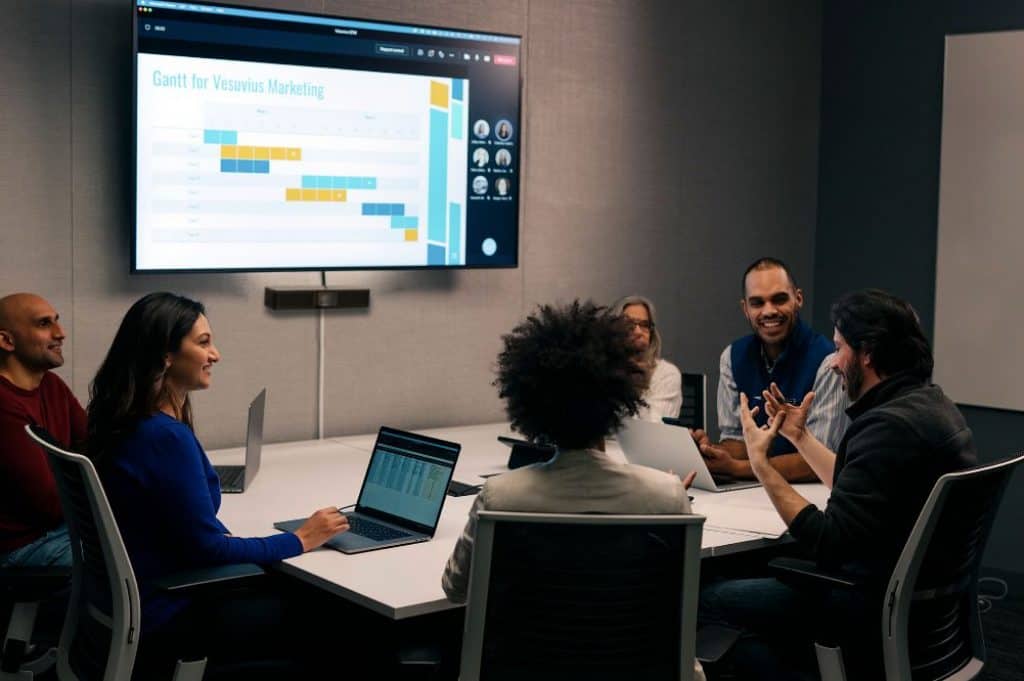
Video conferencing gives you the power to touch base with clients and teammates worldwide while still getting the interpersonal advantage of seeing and hearing them face-to-face. But setting up video conferencing in a meeting room is a bit complicated. And so many moving parts go into specific solutions, making it challenging to provide an exact budget.  

The price for a video conference room ranges from £2000- £8000. However, the price will depend on technology and sizes of rooms: small, medium, and large. 

The most affordable options depend on what you need in a video conferencing meeting room. A video conference room requires eight items to function fully:

  1. A computer- to run everything
  2. Video input(s) – cameras
  3. Video output(s) – monitors or TVs
  4. Audio input(s) – microphones
  5. Audio output(s) – speakers
  6. A way to control – navigating the video conferencing interface
  7. A physical form – something to hold it in place
  8. Miscellaneous items – ranges from small nuts and bolts to control systems programming.

Still, the great deal here is that you do not have to spend on these items separately and buy an all-in-one video conferencing solution. 

Budget according to room size

  • Small Room: An ideal size of a small room is 10’x10′ or smaller. It is designed for up to 4 participants. So the average price for a small video conference room is around £75 per square foot, or up to £2000.
  • Medium Room: A medium room size is generally 20’x20′ to 30’x30′ and is designed to seat 5-10 participants. Thus, the average price for a medium video conference room is around £25 per square foot or up to £5,000. 
  • Large Room: A large-sized room will be larger than 30’x30′ and closer to 50’x50′. It is designed for 10+ participants. The average price for a large video conference room will be around £8,000. 

Budget of technology

The key to putting together a good meeting room on a budget is anticipating the kind of interactions the meeting room will need to enable. And what type of technology is adopted depicts the quality of the meeting. Therefore, the cost of technology is distributed as 

Cost of Software

Most organisations are adopting cloud-based video conferencing services nowadays. A cloud video conferencing software service is all that is required to enable video conferencing on personal devices like laptops and phones. However, small and remote teams without conference rooms may not need meeting room equipment and can opt for a software-only solution. 

Organisations just starting with video conferencing generally should budget £4 to £18 per user per month — or £48 to £220 per year when billed annually. For many organisations, this is less than the cost of legacy audio-only or web conferencing contracts. One common cost justification is to replace a legacy audio conferencing plan with a modern video conferencing solution. Some of the encrypted and reliable business-class video conferencing services/software are:

  • Zoom: Starting at £13.27 per user per month
  • Microsoft Teams: Starting at £4.23 per user per month
  • Google Meet: Starting at £4.14 per user per month
Items Microsoft Teams Zoom Google Meet
Group Meeting Time Limit (Free version) No Limit 40 minutes 60 minutes
Group Meeting Time Limit (Paid version) Unlimited Unlimited Unlimited
Maximum Participants 250 100 100
Free Trial Available Available Available
Recording Yes Yes Yes
Screen Sharing Yes Yes Yes
Customer Support Ticket, Phone & Live Chat Ticket & Live Chat 24/7 Online
Style Modern Standard Standard
Number Of Meetings Unlimited Unlimited Unlimited
Virtual Background Yes Yes Yes

Cost of Hardware

The availability of high-speed networks and HD cameras has led to all-in-one conference room solutions that now cost a tenth of what similar solutions sold less than a decade ago. However, the company should set room standards by determining the best video conferencing equipment for your different-sized rooms to ensure a consistent user experience for every conference room. The best video conferencing equipment you need for your business like conference cameras, speakers, microphones, TVs, etc. are actually depended on the size of the room where they will be used.

For small rooms or huddles

A huddle space is a small room that accommodates meetings for up to 4-5 people. These spaces need technology that lets teams share ideas and collaborate effectively. As the small space is intended for local and virtual collaboration and co-creation, these video bars adjust anywhere and do not require additional accessories. Simple all-in-one video bars would be sufficient because you don’t need to worry about squeezing people into the frame or inconsistent audio quality. 

  • Logitech Rally Mini- £2,336.36 
  • Yealink MeetingBar A20- £1,538.83
  • Poly X50 & TC8 Touch Panel Bundle- £2,419.84
  • Logitech Rally- £3,015.88 (For premium quality)

For medium size rooms

A medium room is good for small groups of four to eight people to spread out when needed. Thus, flexibility is important to optimise your mid-sized rooms for video collaboration. In mid-size rooms, the camera should be capable of capturing and focusing on people near and far. Added pan/tilt/zoom capabilities improves the goal of making everyone visible to people on the other end of the video meeting. The range of room sizes and configurations typical of mid-sized rooms are: 

  • Logitech Rally Bar Room Solution- £5,666.76 (Including software license fee)
  • Yealink A30 With Touch Panel Controller- £2,313.33 
  • Poly X50 & TC8 Touch Panel Bundle- £2,419.84
  • Logitech Rally Bar Mini & Tap- £3,218.49

For large size rooms

With the right video conferencing solution, large rooms can be as easy to manage, outfit, and use as a huddle room. If you’re conducting a meeting with upwards of 10 people or more in a room, chances are you can’t risk the inconveniences due to technical inefficiencies. For rooms on the larger end, you may need multiple mics and high-performance cameras set up around the room. Thus, it’s crucial to make sure that the camera can be controlled and adjusted through multiple control methods such as remote control, keyboard, etc. 

  • Yealink MVC840- £3,186.82 
  • Poly STUDIO X70 & TC8 Bundle- £5,260.73
  • Rally Bar & Tap Bundle- £3,883.66 
  • Logitech Tap Room Solution- £5,158.56 (Including software license fee)

Miscellaneous cost

Despite the thorough nature and a well-executed build phase, the fact remains that technology is subject to error. And just like computers, smartphones or any other technology, the expected lifecycle for video conferencing hardware varies greatly by provider. Thus, additional costs like installation and infrastructure improvements required to support a solution can add up.

However, these cost helps in keeping your AV system operating efficiently and lowering the total cost of ownership. Thus, the cost of professional services ranges from £800 to £1000 per day. 

Picture of Meeting Store

Meeting Store

Table of Contents

AV Equipment

BenQ InstaShow: How It Differs From Other Wireless Presentation Devices

Meetings are never fun for anyone, whether you were the one hosting the meeting or being called to one. Again having to fumble through all your paper work, days and weeks of folders trying to find the couple of pages that you'll need to share. Meetings have come a long way and gone are those days of walking into a meeting with a mountain of paperwork. There had to be a simpler way for you host and join in with your meeting. Without fumbling through papers. That's where wireless sharing came centre stage, especially the BenQ InstaShow range. With BenQ InstaShow you can share everything your need to share and more in one click. You can simply walk into a meeting with your laptop, or phone, sit down and plug in the InstaShow Button to share the information you need to share. But with other wireless sharing devices out there, how does BenQ differ from the rest? What is InstaShow?   BenQ InstaShow is a way for you to brag about your ideas. Its a wireless presentation device that brings seamless sharing to any meeting room or classroom. You can walk into your meeting with your head held high, plug the InstaShow Button into your laptop and start your presentation strong. The InstaShow range is perfect for hosting meeting, letting you walk around the meeting room with your head high while showing off your great ideas on the big screen. All this is done just by plugging in and clicking the button. In just one click you can become the leader of the meeting. You can share from your laptop, Mac and even your phone and tablet devices with the USB-C Button. Made to widen the audience of who can share. InstaShow stops unnecessary actions in meetings, you wont have to be unplugging and sharing around cables anymore. The InstaShow range includes the WDC10, WDC10C, WDC20, WDC20C, USB-C Button Kit and the InstaShow HDMI Button Kit. Each kits have different features and functions but they all share the capability of wireless sharing and presenting.  InstaShow WDC10 And WDC10C    First of lets talk about the WDC10 and WDC10C. The WDC10 and WDC10C are the better fit for wireless sharing and presenting within companies and classrooms. This is because it features a standard HDMI cable. This plug-and-play device is great for students, teachers and employees to share their work with the rest of the class or colleagues. And with up 16 presenters being able to present, a big chunk of your students or employees will be set up and ready to share in an instant. With no software needed, its simple for you to share. Just plug the InstaShow Button into your laptop, pair the devices together and click the Button once the pairing has finished. With this one click your work, from you laptop, will be projected onto the big screen - letting you talk away while everyone can see your work. Making you look professional and focused on your presenting.  [vc_images_carousel images="30946,30956,30957,30963" img_size="full"] With the WDC10 and WDC10C, up to 16 people can present. Each person getting their ow time to shine. Now reading that you can probably imagine the mayhem that it might cause - especially in the classroom. With students bickering about who gets to present. Yes, the InstaShow will take up to 16 presenters, but each presenter will have their own dedicated time to present. This is as the WDC10 isn't compatible with 4 people sharing at once. This feature really shows what the InstaShow WDC10 is all about, single person presentations in small to medium sized meetings or classrooms.  InstaShow WDC20 And WDC20C If the WDC10 doesn't seem like it would be enough for want you need, then the InstaShow WDC20 and WDC20C might do the trick. The WDC20 is for much larger meetings, with the opportunity for 32 people to share and present. Giving everyone has the chance to express themselves in the meeting, by splitting the meeting room display into 4. So you can share simultaneously.  Imagine yourself in a large meeting, all of the participants sat around the boardroom table - obviously in a COVID free world. You can feel a bit lost and unheard as so many people are chiming in. With the InstaShow WDC20 or WDC20C at hand, you can easily jump into the conversation. Just grab the InstaShow Button, plug it into your laptop with the HDMI cable and click the button on the top of the device. Your laptop screen will then be shown on the meeting room display, gaining you everyone's attention. Plus, if you aren't one for pacing back and forth when presenting. You can stand at the front of the room, next to the meeting room display and still use your laptop applications. This is with the help of touchback support. The capabilities are endless. The InstaShow kit will provide full HD resolution with a router level chip. Meaning that when you are in video mode, the video being show will run smoothly, with no pixilation, lagging or any awkward silences.    The WDC20 is all you need for you to become the boss of a meeting. With no software or driver needed, the BenQ InstaShow is too easy to set up. Setting Up It only takes seconds for the InstaShow to be set up. Even the most untechnical person can set the InstaShow up and instantly upgrade a meeting room. When your new wireless presentation system arrives, you will have to a pair the Button and the Transmitter together. The Transmitter acts as the base unit for the Button, connecting the Button to your meeting room display. To pair these two you will have to hold down the pairing key on the Button and the Transmitter for 5 seconds. This will then pair the two devices together and connection between the two will be automatic. If you have your InstaShow kit already installed and just want to pair another Button, then you can still
Read More »
remote work collaboration tools
Remote Collaboration

Transform Your Work Experience with the Ultimate Remote Work Collaboration Tools

Remote work, also known as telecommuting or telework, has witnessed a tremendous surge in popularity in recent years. This work arrangement allows individuals to perform their job duties from outside of a traditional office setting, utilizing technology to stay connected with their teams and accomplish tasks collaboratively. To ensure effective collaboration among remote teams, the use of advanced collaboration tools has become essential. This blog aims to explore various collaboration tools that can enhance the remote work experience, enabling seamless communication, efficient project management, and streamlined teamwork.Remote work has gained immense traction due to several factors. With advancements in technology, individuals can now connect with their colleagues, share files, and collaborate on projects regardless of physical location. Moreover, remote work offers flexibility, allowing employees to achieve a better work-life balance and eliminate time-consuming commutes. It also enables companies to tap into a global talent pool, providing access to diverse skill sets and reducing geographical limitations.In the realm of remote work, collaboration tools play a pivotal role in bridging the physical gaps and facilitating seamless teamwork. These tools encompass a wide range of software, platforms, and apps that enable remote teams to communicate, share files, manage tasks, and collaborate effectively. By leveraging collaboration tools, remote teams can overcome the challenges of distance and time zones, ensuring smooth and efficient project execution.Effective communication lies at the heart of successful remote collaboration. With virtual collaboration tools, team members can connect in real time, hold meetings, and exchange ideas effortlessly. These tools often provide features such as video conferencing, instant messaging, and audio calls, enabling remote teams to maintain a sense of camaraderie and foster effective teamwork.Remote work collaboration tools offer robust project management capabilities, allowing teams to organize tasks, assign responsibilities, and track progress in a centralized platform. These tools often include features like task boards, Kanban boards, and Gantt charts, enabling remote teams to visualize project timelines, identify bottlenecks, and allocate resources efficiently. By streamlining project management, collaboration tools contribute to enhanced productivity and timely project delivery.5 Remote Work Tools  Understanding the Need for Remote Work Collaboration ToolsRemote work has become increasingly common, enabling teams to collaborate from different locations. However, this arrangement presents unique challenges in terms of communication, project management, and file sharing. These challenges can hinder productivity and teamwork if not effectively addressed.One of the primary challenges faced by remote teams is communication. Without the ability to engage in face-to-face interactions, team members may experience difficulties in exchanging ideas, clarifying tasks, and fostering a sense of camaraderie. This lack of real-time communication can lead to misunderstandings and delays in decision-making, impeding progress.Another significant challenge for remote teams is effective project management. Coordinating tasks, tracking progress, and ensuring everyone is aligned can be complex when team members are physically dispersed. Traditional project management methods may not suffice in the remote work environment, requiring more adaptable and streamlined approaches.In a remote work setup, file sharing can become cumbersome without proper tools. Sharing and collaborating on documents, spreadsheets, and other files can be challenging when relying solely on email attachments or outdated file-sharing methods. Remote teams need efficient and secure file-sharing solutions to enhance productivity and ensure seamless collaboration.Significance of Collaboration ToolsTo overcome these challenges, remote teams rely on collaboration tools that facilitate virtual collaboration and empower seamless teamwork. These tools play a vital role in improving communication, project management, and file sharing, enabling remote teams to thrive.Improved Communication: Remote work collaboration tools offer various features like instant messaging, video conferencing, and virtual meeting rooms. These functionalities foster real-time communication, allowing team members to connect effortlessly, discuss projects, share ideas, and address concerns promptly. By facilitating quick and efficient communication, these tools bridge the gap between remote team members and cultivate a cohesive work environment.Streamlined Project Management: Collaboration tools for remote teams provide dedicated project management features that enhance coordination and organization. These tools enable task assignment, progress tracking, and deadline management in a centralized platform. With shared task lists, Kanban boards, and project calendars, remote teams can efficiently manage projects, allocate resources, and monitor progress, ensuring everyone stays on the same page.Efficient File Sharing: Remote work collaboration tools offer secure and cloud-based file-sharing capabilities. By utilizing these tools, team members can easily upload, access, and collaborate on files from any location, eliminating the need for lengthy email chains and version control issues. Real-time editing and commenting features facilitate seamless collaboration, ensuring that everyone has the most up-to-date information and promoting efficient teamwork.Benefits of Using Remote Work Collaboration ToolsThe adoption of remote work collaboration tools brings numerous benefits to organizations and remote teams alike, ultimately driving productivity and fostering teamwork.Increased Productivity: Collaboration tools optimize workflow, streamline processes, and eliminate bottlenecks, resulting in increased productivity. Real-time collaboration features enable efficient information exchange, empowering remote teams to work together seamlessly and accomplish tasks more effectively. Moreover, centralized project management and file-sharing capabilities reduce time wasted on manual administrative tasks, allowing team members to focus on core responsibilities.Enhanced Teamwork: Remote work collaboration tools promote a sense of camaraderie and collaboration among team members. By providing platforms for instant communication, virtual meetings, and collaborative file sharing, these tools bridge the physical distance and create a virtual workspace where remote teams can brainstorm, innovate, and support one another. This fosters a sense of teamwork and shared purpose, leading to improved morale and job satisfaction.  Free Remote Collaboration ToolsIn today’s digital age, remote work has become increasingly prevalent, requiring effective collaboration tools to facilitate seamless teamwork and productivity. Fortunately, there is a wide range of free remote collaboration tools available that can empower remote teams to collaborate efficiently, regardless of their physical locations. These tools offer features such as project management, file sharing, task management, and communication, enabling virtual collaboration and enhancing overall productivity. In this section, we will explore some of the popular free collaboration tools suitable for remote teams, highlighting their key features and functionalities.Google Workspace Google Workspace, formerly known as G Suite, is a comprehensive suite of cloud-based tools designed to enhance remote collaboration. It offers

Read More »
remote work collaboration software
Remote Collaboration

Boost Your Team’s Performance with the Best Remote Work Collaboration Software

Boost your team’s performance with the best remote work collaboration software. Discover powerful tools and strategies to enhance virtual teamwork, streamline project management, and improve communication. Unlock the full potential of remote work productivity and create a digital workplace that drives success. Read on to revolutionize your remote collaboration experience.

Read More »
AV Equipment

All You Need To Know About The Whiteboard Owl: Our Full Review

The Meeting Owl Pro has been the go to product for many meeting rooms. A unique way to really see everybody in the meeting - up close and personal. The Meeting Owl Pro boasts 360-degree views of your meeting room, putting everyone on your screen. Up close. Allowing you to see everybody at once. Without having to wait for the camera to track and move to who is speaking. By the time it processes who is speaking, its too late. The Meeting Owl Pro covered that. However now that working from home is the new normal, being able to create and present to your colleagues, or your students, has been a bit of a challenge. Even though a lot of interactive displays have integrated digital whiteboards. Being able to create in real time, on a real whiteboard big enough for you, your colleagues and your classmates. Is a must for a lot of people. That's where Owl Labs stood up and created the Whiteboard Owl. The Meeting Owl's friend that captures your whiteboard content.  But with the Whiteboard Owl seeming like just another meeting room camera, how does the Whiteboard Owl differ from other meeting room cameras? What Is The Whiteboard Owl? The Whiteboard Owl is a camera for you to capture your whiteboard content, shooting it across to your remote participants in HD quality. All of this while working with the Meeting Owl Pro. Just pair the two devices together and your meeting will have 360-degree views of the people within the meeting room or classroom. The Whiteboard Owl is fully flexible to your needs. It can be mounted on the ceiling, the wall or can be mounted on a tripod. If you chose to mount the Owl on your wall or on a tripod, it is recommended that you place it 7 - 16 feet away from your whiteboard and 6 feet off the ground. Allowing the Owl to capture a large area of your whiteboard and capture the content clearly.  The Whiteboard Owl includes: Whiteboard Tags Power Supply Mount Adhesive Strips  Cable Management Pieces Drywall Hangers  Screws A tripod for the Whiteboard Owl will have to be bought separately. But not to worry though - you wont need to think too much about buying the right tripod. The Owl comes with a tripod screw thread on the bottom of the device. Making it easy for you to set up the Owl and chose the right tripod. Just make sure that you use a tripod screw that isn't longer than 8mm - otherwise you will damage the Whiteboard Owl. If you are going to be moving the Owl from room to room. Then getting a tripod is recommended. Instead of you having to take the Owl off the wall when you want it in a different room. When you are moving your Whiteboard Owl around, just remember to take your whiteboard tags with you.  Content When creating content with the Whiteboard Owl you will never have to worry about your participants not being able to see what you have created, as the Owl comes with features to enhance your content. When you're ready to start creating on your whiteboard, you simply flip over one of the whiteboard tags. This will then switch the remote participants view from the Meeting Owl to the Whiteboard Owl. Then you can start drawing on the whiteboard. Another way the Whiteboard Owl focuses on your content is that you will almost become invisible to your remote participants when drawing on your whiteboard. So when you're drawing the Whiteboard Owl will pick out the content that it can see and enhance it, while turning you transparent. Then when your done drawing and move out of frame, the Owl will line up the rest of your drawing and enhance it further. Making the Whiteboard Owl experience even easier. Just a little tip though. Owl Labs recommend using black, blue, red or green markers when using the Whiteboard Owl. Just so your drawing can be picked up by the Owl clearly. The whiteboard capture feature stops you from having to take notes during the Whiteboard Owl session. You missing out on important parts of your meeting as you had to look at your notepad. The Whiteboard Owl will take photos of your whiteboard and store them for you to look at after your session is over.  Whiteboard Tags The whiteboard tags are a crucial part of the Whiteboard Owl - without them nothing on your whiteboard will be seen. So before you even set up the Whiteboard Owl, place the whiteboard tags on your whiteboard. One in the top left hand corner and one in the bottom right hand corner. This is just so you don't get ahead of yourself and start using the Whiteboard Owl without putting the tags on. Taking your time creating on the whiteboard and your participants via Zoom not seeing a thing. The tags look somewhat like QR codes.  They have to go, like we said in the top left hand and bottom right hand corner, but you can create your own smaller frame. This is if you don't want your whole whiteboard being captured. The tags act as a frame for your content and what the Whiteboard Owl should focus on. Make sure that they are facing upright for them to work right. The tags are also magnetic, so they are super easy to set up. However if your whiteboard isn't a magnetic whiteboard, then you will need to use magnetic adhesive strips to attach the tags to your whiteboard. Going back to the idea of moving the Owl from room to room, obviously the tags need to be moved to the new room as well. When setting up the Owl in the new room, the Whiteboard Owl and the tags need to re crop. Meaning that the Owl will have to figure out the frame you want of the new whiteboard. This process is just so that the
Read More »
remote collaboration for HR teams
Remote Collaboration

Optimise Remote Collaboration for HR Teams with these Powerful Tools

In today’s remote work environment, HR teams face unique challenges in maintaining effective collaboration and workflow management. The shift towards remote work has necessitated the adoption of powerful remote collaboration tools to streamline HR processes and enhance productivity. This blog aims to provide a comprehensive list of such tools, enabling HR teams to overcome the hurdles of remote collaboration and optimise their workflow. Communication and Collaboration: HR teams heavily rely on seamless communication and collaboration to fulfill their responsibilities. However, remote work settings often hinder face-to-face interactions and impede the spontaneous exchange of ideas, leading to communication gaps and reduced collaboration. Workflow Management: Coordinating HR activities, managing projects, and tracking progress can be challenging when team members are geographically dispersed. The absence of physical proximity requires HR teams to find efficient ways to delegate tasks, monitor workflows, and ensure timely completion of assignments. Document Management: With remote work, HR teams need efficient systems for sharing, editing, and storing documents securely. Traditional methods of document handling become impractical, emphasising the need for digital collaboration tools that enable remote access, version control, and document security. Project and Task Management: HR projects often involve multiple tasks, deadlines, and dependencies. Without proper tools, remote teams may struggle to track progress, assign responsibilities, and manage tasks effectively. HR teams require streamlined project management and task tracking solutions tailored to remote work environments. How I use Asana to manage my organization’s work and teams  Understanding Remote Collaboration for HR TeamsRemote collaboration has become increasingly important for HR teams in today’s digital era. It refers to the process of working together on projects, tasks, and initiatives while being physically located in different places. This concept has gained significant significance as organisations embrace remote work and virtual teams. In this section, we will explore the concept of remote collaboration and its vital role in enhancing efficiency, communication, and workflow management for HR teams.Improving Efficiency through Remote CollaborationRemote collaboration offers numerous benefits to HR teams, and one of the key advantages is improved efficiency. By leveraging collaboration tools and software, HR professionals can streamline their workflow and eliminate geographical limitations. They can work on projects, exchange information, and collaborate on tasks seamlessly, regardless of their physical location. This streamlined process allows HR teams to work more efficiently and complete projects in a timely manner.Enhancing Communication within HR TeamsEffective communication is vital for the success of HR teams, and remote collaboration plays a crucial role in facilitating communication across distributed teams. Collaboration tools for HR teams enable real-time communication, allowing team members to connect and interact instantly. Whether it’s discussing HR strategies, addressing employee concerns, or coordinating recruitment efforts, remote collaboration tools provide a platform for seamless communication. This enhanced communication fosters stronger collaboration and ensures that everyone is on the same page, regardless of their physical location.Enabling Seamless Workflow ManagementWorkflow management is a critical aspect of HR operations, and remote collaboration simplifies this process for distributed teams. With the help of collaboration tools, HR professionals can effectively manage documents, projects, and tasks. Cloud-based collaboration platforms offer secure and centralised document management, allowing HR teams to access and collaborate on files from anywhere. HR project management software and task management solutions also enable efficient planning, execution, and tracking of HR initiatives, even in a remote work environment. These tools automate manual processes, streamline HR workflow, and ensure that tasks are completed on time.The Role of Collaboration Tools in Remote WorkCollaboration tools are the backbone of remote work and play a pivotal role in facilitating remote collaboration for HR teams. These tools encompass a wide range of software, platforms, and applications designed to support virtual teams and enable effective collaboration. HR collaboration software offers features tailored to HR processes, such as employee onboarding, performance management, and HR analytics. Virtual collaboration tools provide virtual meeting spaces, video conferencing capabilities, and chat functions to encourage real-time collaboration and idea sharing among team members. By leveraging these tools, HR teams can overcome the challenges of remote work and continue to collaborate effectively. Collaboration Tool Description HR Collaboration Software Software designed specifically for HR processes Virtual Collaboration Tools Tools that provide virtual meeting spaces and chat HR Project Management Software Software for planning, executing, and tracking HR projects Task Management Solutions Tools for efficient management and tracking of tasks Cloud-Based Collaboration Tools Tools that enable secure and centralised document management   Key Features to Look for in Remote Collaboration Tools for HRIn today’s evolving work landscape, remote collaboration has become essential for HR teams to manage their workflow and ensure seamless communication effectively. The right collaboration tools empower HR professionals to streamline processes, enhance productivity, and foster efficient teamwork. In this section, we will explore the key features that HR teams should consider when selecting remote collaboration tools, emphasising document management, project management, task management, and secure communication. We will also highlight the significance of cloud-based solutions and automation capabilities in effectively streamlining HR workflows.Document Management: Centralize and Organize HR DocumentsEfficient document management is crucial for HR teams operating remotely. Look for remote collaboration tools that offer robust document management capabilities. These tools should enable HR teams to centralise all HR-related documents securely, allowing easy access for authorised team members. With features like version control, document sharing, and real-time collaboration, HR professionals can collaborate seamlessly on projects, policies, and procedures. A comprehensive document management system ensures that HR teams can maintain accurate records and easily retrieve information as needed.Project Management: Track and Coordinate HR ProjectsRemote collaboration tools should include project management features tailored to the specific needs of HR teams. These features enable HR professionals to define project goals, set milestones, assign tasks, and track progress. An effective project management module allows for transparency and accountability within the HR team, ensuring everyone stays on track and meets deadlines. Look for tools that offer visual timelines, task dependencies, and team collaboration functionalities to enhance project coordination and productivity.Task Management: Streamline HR WorkflowsStreamlining HR workflows is essential for remote teams. Look for collaboration tools that provide robust task

Read More »
MeetingStore.co.uk
Logo
Compare items
  • Total (0)
Compare
0
Shopping cart